Voice Over a Video from Subtitles: How to Make an Audio Track in Another Language
Translated subtitles help viewers understand your video, but not everyone wants to read text at the bottom of the screen. A voice in their own language is easier to follow, especially in tutorials, reviews and long videos. Recording a dub with a voice actor takes time and money. If your video already has subtitles, most of the work is done: the subtitle file holds both the text and the timing of every phrase. This guide shows how to voice over a video from subtitles, from preparing the file to a finished audio track in another language.
What a voice-over from subtitles is
An .srt subtitle file is a list of lines. Each line has a number, a start and end time, and the text. A text-to-speech engine reads these lines and places each phrase where it appears on screen. The result is a voice track that runs in step with the video, so you do not have to cut and move pieces of audio on the timeline by hand.
This is how voice-over from subtitles in Creator Tools Speaker works: you upload an .srt file, choose a language and a voice, and get an .mp3 file synced to the subtitle timings.
What you need
- A finished video. Make the voice-over after the final edit: if you cut a piece out of the middle later, the timing will drift.
- Subtitles in the original language. Your own .srt file or YouTube's automatic captions after you have checked them.
- A translation of the subtitles into the language the track should be in.
- A voice-over tool. The examples below use Speaker: it supports 44 languages and gives you the result as an .mp3.
Step 1. Prepare the subtitles in the original language
The voice-over repeats everything in the file, typos and recognition errors included. So proofread the subtitles first:
- Fix recognition errors. Automatic captions often get names, terms and brand names wrong. The voice will say exactly what is written.
- Add punctuation. Periods and commas set the pauses and the intonation. A block of text with no punctuation sounds flat.
- Remove what should not be spoken. Notes like [music] or [laughter] do not belong in a voice-over.
- Check the line timings. If a line is on screen for half a second but holds three seconds of text, the voice has to speed up a lot.
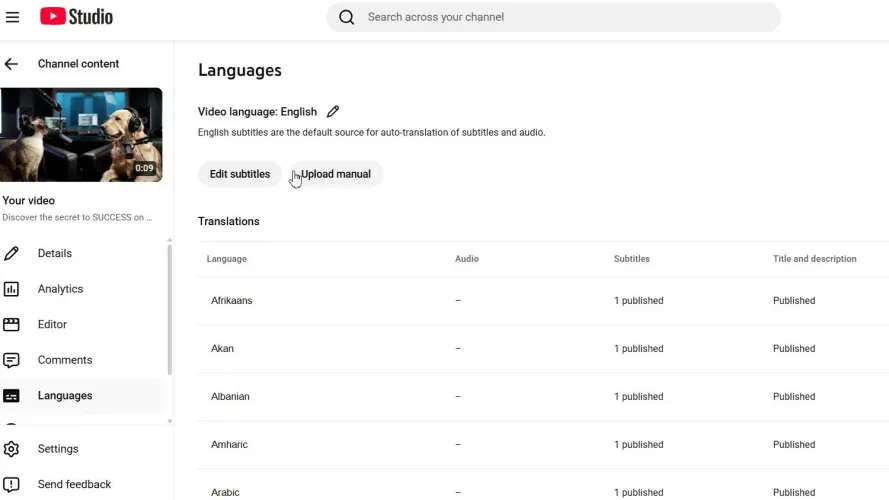
If the video has no subtitles yet, add them in YouTube Studio: upload your own file, or take the automatic captions and correct them.
Step 2. Translate the subtitles into the target language
The voice-over is spoken in the language the text is written in. Speaker voices the text; it does not translate it. So before the voice-over you need a subtitle file in the target language with the same timings as the original. There are two ways to get one:
- By hand. Download the subtitle file, translate each line and make sure the line numbers and timings stay intact.
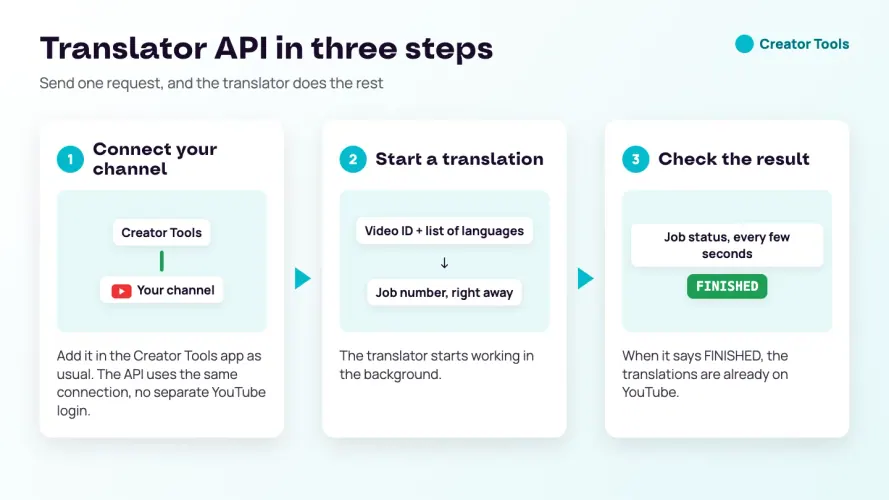
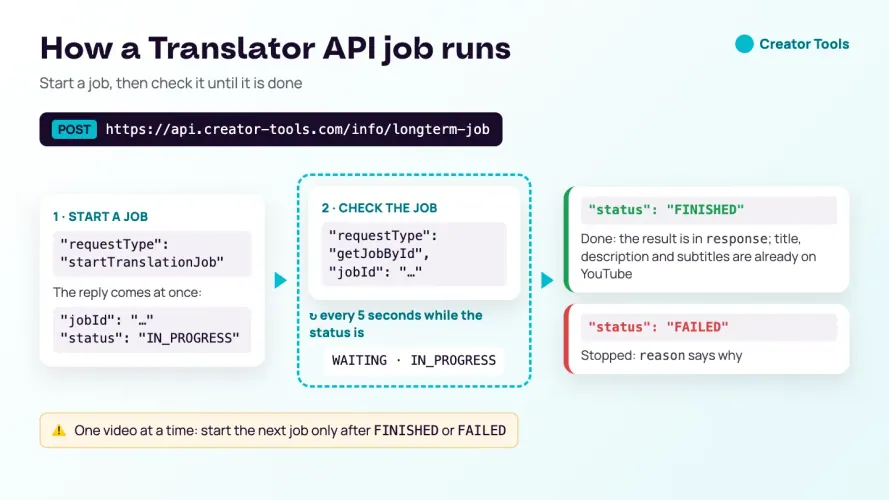
- Automatically. Creator Tools translates a video's existing subtitles into any of 143 languages, together with the title and description, and publishes the translations on YouTube for you. More on this in the guide on how to translate YouTube subtitles automatically.
After translating, have a native speaker read the text if you can. A translated phrase is often noticeably longer than the original. If a line holds too much text, shorten it so the voice does not have to rush. Not sure which languages to voice first? See the best languages to translate YouTube videos into.
Step 3. Create the voice-over in Speaker
- Upload the file. Drag and drop an .srt or .txt subtitle file, or paste the text directly. The original timing from the .srt is kept automatically.
- Pick a language and a voice. There are 44 languages and 130+ natural voices. You choose a voice by language, gender and style; some languages have regional varieties, for example American, British and Australian English, or Portuguese and Brazilian Portuguese.
- Set the sound. Adjust the tone and the speed, from 0.5x to 2x. Turn on AI timing change or speed autoadjust so the phrases land more precisely in the video.
- Click “Generate”. When the voice-over is ready, a download link arrives by email. The result is one studio-quality .mp3 file (48 kHz / 96 kbps).
Limits per run: up to 560 lines in caption mode and up to 20,000 characters in plain-text mode. For a long video, split the subtitles into parts and voice them one after another.
You can hear voice samples in different languages on the Speaker AI voice-over for subtitles page.
Step 4. Check the track with the video
Put the .mp3 under the video in your editor and watch the whole thing. Look at three things:
- Sync. A phrase should be heard when the thing it talks about is on screen.
- Pace. If the voice rushes somewhere, that line has too much text for its time. Shorten the translation of that line and voice the file again.
- Pronunciation. Names, brands and abbreviations sometimes sound unexpected. It helps to spell the word the way it is pronounced, or to write out the abbreviation in full.
Fix things in the subtitle file, not in the audio: correct the line, voice it again, and the timing stays right.
Step 5. Add the track to your video
You can use the finished voice-over in two ways:
- As an extra audio track on the same YouTube video. A viewer whose preferred language matches it hears it automatically; everyone else hears the original. How to do it and who has the feature is covered in the guide on how to add an audio track in another language on YouTube.
- As a separate version of the video. Replace the voice in your editor, or lay the voice-over over the original at a lower volume, and publish the video separately, for example on a second channel, as Shorts or on social media.
Do not forget the text around the video: a title and description in the voice-over's language help viewers in another country find it. How to translate them for all your videos at once is covered in the guide on how to translate your YouTube channel.
How much a voice-over from subtitles costs
In Speaker you pay for the characters you voice: letters, spaces and punctuation all count. One minute of speech is about 850 characters, so a 10-minute video with dense narration is about 8,500 characters. The exact length depends on the voice and the text.
- Free: 1,000 characters, to hear your own text voiced before you buy.
- Basic: $2.69 for 25,000 characters, about 29 minutes of voice-over.
- Standard: $8.99 for 120,000 characters, about 141 minutes.
- Advanced: $14.99 for 205,000 characters, about 241 minutes.
- Pro: $24.99 for 350,000 characters, about 412 minutes.
Packs differ only in size and price per character: the languages, voices and audio quality are the same in all of them. Current prices are on the pricing page.
When a voice-over from subtitles works best
A synthetic voice works well where the content matters most: tutorials and online courses, how-to videos, reviews, screen walkthroughs, podcasts. It is harder with videos that rely on emotion and the creator's live delivery. There, voice one video first and see how viewers in the new language respond.
Start with one video and one language: upload checked subtitles, pick a voice and compare the result with the original. You can try voice-over from subtitles for free on 1,000 characters, enough for a short part of a video.
Voice-over from subtitles: FAQ
What is a voice-over from subtitles?
It is a voice track that a text-to-speech engine creates from a subtitle file. In an .srt file every line has its text and its time, so each phrase is spoken at the moment it appears on screen.
What subtitle format do I need for a voice-over?
Creator Tools Speaker takes .srt and .txt subtitle files, or text pasted directly. To keep the voice-over in time with the video, upload an .srt file. A subtitle file can have up to 560 lines per run.
Which languages can I voice a video in?
Speaker voices text in 44 languages, including English, Spanish, German, French, Portuguese, Arabic, Hindi, Japanese and Russian. You can pick a male or female voice and set the tone and the speed from 0.5x to 2x. Speaker voices the text as written and does not translate it, so the subtitles must already be in the target language.
What format is the finished voice-over?
One MP3 file at 48 kHz / 96 kbps. When it is ready, a download link arrives by email.
How much does a voice-over from subtitles cost?
You pay for the characters you voice: letters, spaces and punctuation all count. You get 1,000 characters free to try it. Packs start at $2.69 for 25,000 characters, about 29 minutes of speech at roughly 850 characters a minute.