How to Add an Audio Track in Another Language on YouTube
A translated title, description and subtitles help viewers in other countries find your video and understand it. The next step is for the video to sound like it was made in their language. This used to mean uploading a separate version of the video or running a second channel. Now YouTube lets one video carry several audio tracks in different languages. This guide covers how multi-language audio works, who can use it, how to add an audio track in YouTube Studio and where to get the voice track itself.

What multi-language audio on YouTube is
Multi-language audio means extra audio tracks on one and the same video: the video and its address do not change, only the voice is in another language. According to YouTube Help, you can add these tracks to regular videos and to Shorts.
YouTube decides which track a viewer hears: it plays the track that matches the viewer's preferred language. If someone would rather listen in another language, they can switch the track in the video player settings.
One detail: YouTube's automatic captions are created in the language of the original audio track.
Who can use it
According to YouTube Help, multi-language audio is currently available to creators with access to advanced features. If you do not see Dub when you add a language, check whether advanced features are available on your channel. What to do in that case is covered below, in If you do not have the feature yet.
How to add an audio track in YouTube Studio
You add tracks on a computer, one language at a time:
- Sign in to YouTube Studio on a computer.
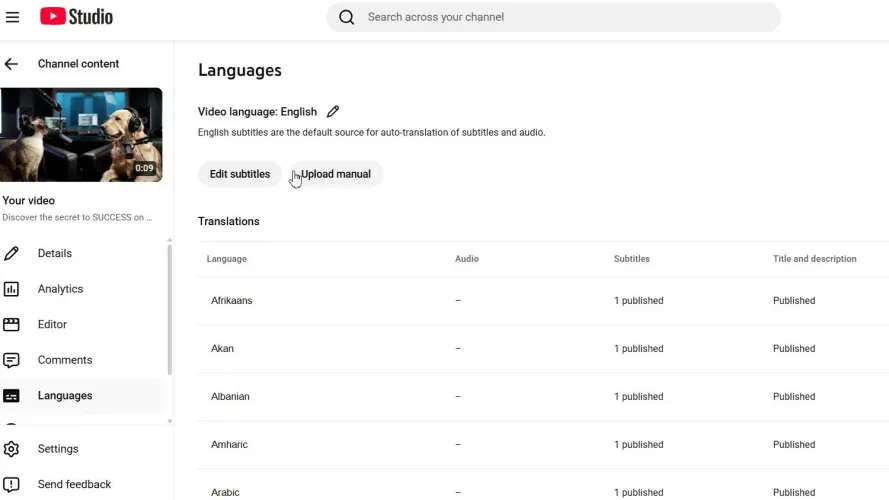
- In the left menu, select Languages.
- Click the video.
- Click Add Language and choose the language from the list.
- Next to Dub, click Add.
- Click Select file and choose the file with the voice track.
- Click Publish.
For each further language, repeat from step four. In the same language row you can add a translated title, description and subtitles, so the viewer gets the whole video in their language: in search and in the player.
What the audio track file needs
YouTube Help names two conditions: the file must be in a supported audio-only file format and roughly the same length as your video. That help article does not list the formats, so if YouTube does not accept your file, check the supported formats in YouTube Help.
The second condition matters more than it seems. The track should match the video not only in total length but also in meaning at every moment: if the voice runs a few seconds ahead of the picture, viewers notice at once. So build the track to the video's own timing instead of just reading the translation from start to finish.
Two more rules from YouTube Help:
- Copyright. If the added track contains copyrighted content that differs from the original audio, for example different music, the file may be removed. It is safer to keep the same background as the original and change only the voice.
- Edits to the video. If you later trim or swap audio in the original video, those edits carry over to the extra tracks.
Your own dub and automatic dubbing
YouTube also has automatic dubbing, but that is a separate feature. The tracks this guide is about are ones creators prepare themselves: YouTube does not generate them. If a video already has an automatic dub in a language and you want to use your own, YouTube Help says to delete the automatic dub first and then upload your audio.
Where to get a voice track in another language
There are three options:
- Record it yourself, if you speak the language fluently.
- Hire a native-speaking voice actor. This is the best option for videos where live delivery matters, and the most expensive: every new language is a separate recording.
- Make a voice-over from subtitles. If the video has subtitles, you can translate them and have them voiced by a synthetic voice. In a subtitle file every phrase already has its time, so the voice runs in step with the video.
The third option is the easiest to scale. Creator Tools Speaker makes a voice-over for your video from subtitles: you upload an .srt file, choose one of 44 languages and a male or female voice, set the tone and the speed from 0.5x to 2x, and get an .mp3 file synced to the subtitle timings. Speaker voices the text and does not translate it, so upload subtitles that are already in the target language. You get 1,000 characters free to try it; packs start at $2.69 for 25,000 characters.
The whole process step by step, from preparing and translating the subtitles to generating and checking the track, is in the guide on how to voice over a video from subtitles in another language.
What to check before uploading
- The video edit is final. Make the voice-over from the final version, or the timing will drift.
- The track is roughly as long as the video. This is a direct requirement in YouTube Help.
- The background matches the original. The less that is new in the track apart from the voice, the lower the copyright risk.
- The title and description are translated. Otherwise viewers can hear the video in their language but cannot find it in search. How to translate them for all your videos at once is covered in the guide on how to translate your YouTube channel.
If you do not have the feature yet
Without access to multi-language audio, you can still use a voice-over:
- A separate version of the video. Edit a version with the voice-over in another language and publish it separately, on a second channel for that audience or as short clips for social media.
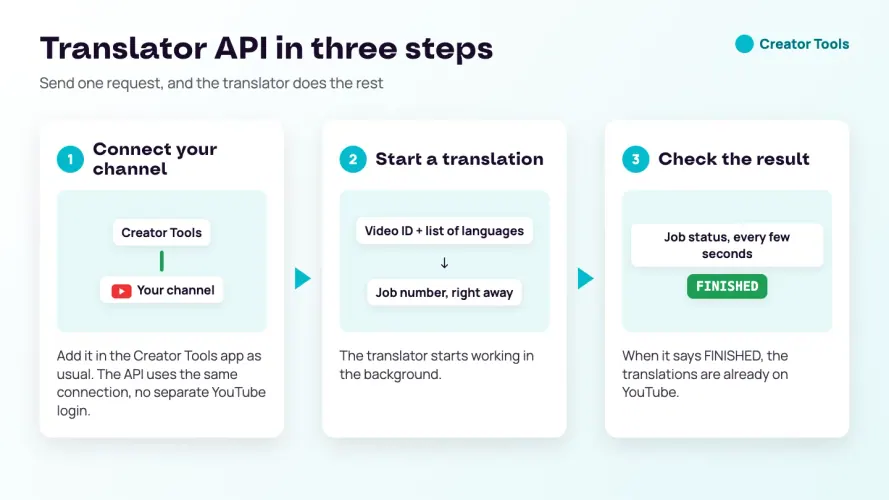
- Translated subtitles and metadata. Even without audio in their language, viewers find the video by its title in their language and follow it with subtitles. Creator Tools translates titles, descriptions and existing subtitles into any of 143 languages and publishes the translations on YouTube for you.
When the feature comes to your channel, you can simply add the .mp3 files you already have to the same videos as tracks. Not sure which languages to start with? See the best languages to translate YouTube videos into.
To hear how your video sounds in another language, upload a short piece of its subtitles and listen to the AI voice-over for subtitles in Speaker: 1,000 characters are free.
Audio track in another language: FAQ
Can I add an audio track in another language to a YouTube video?
Yes. YouTube lets you add audio tracks in different languages to regular videos and Shorts. According to YouTube Help, multi-language audio is currently available to creators with access to advanced features.
Where in YouTube Studio do I add an audio track?
In the left menu, open Languages and click the video. Click Add Language and choose the language. Then, next to Dub, click Add, click Select file and click Publish.
What does the audio track file need?
According to YouTube Help, the file must be in a supported audio-only file format and roughly the same length as your video.
Which track will a viewer hear?
YouTube plays the track that matches the viewer's preferred language. Viewers can switch the language in the video player settings.
Where do I get a voice track in another language without a voice actor?
You can make one from translated subtitles. Creator Tools Speaker voices an .srt file in one of 44 languages and gives you an .mp3 file synced to the subtitle timings. Speaker does not translate, so the subtitles must already be in the target language.