How to Translate Your YouTube Channel: Titles, Descriptions and Subtitles
Most YouTube viewers do not speak your language. They search, browse and read titles in their own. If your channel only has titles and descriptions in one language, it is invisible to most of them, even when the video itself would work for them. This guide shows what you can translate on YouTube, how to do it by hand in YouTube Studio, where the manual way stops scaling, and how to translate a whole channel in a few clicks.
What “translating a YouTube channel” means
You do not need to re-upload anything or run a second channel. YouTube lets one video carry several language versions of its text:
- Title and description. Each video can have a title and description per language. A viewer whose YouTube language matches one of them sees that version in search, in recommendations and on the watch page.
- Subtitles. Each video can have a subtitle track per language, so people can follow the video in their own language.
- Channel name and description. Your channel's basic info can be translated too, in YouTube Studio under Customization.
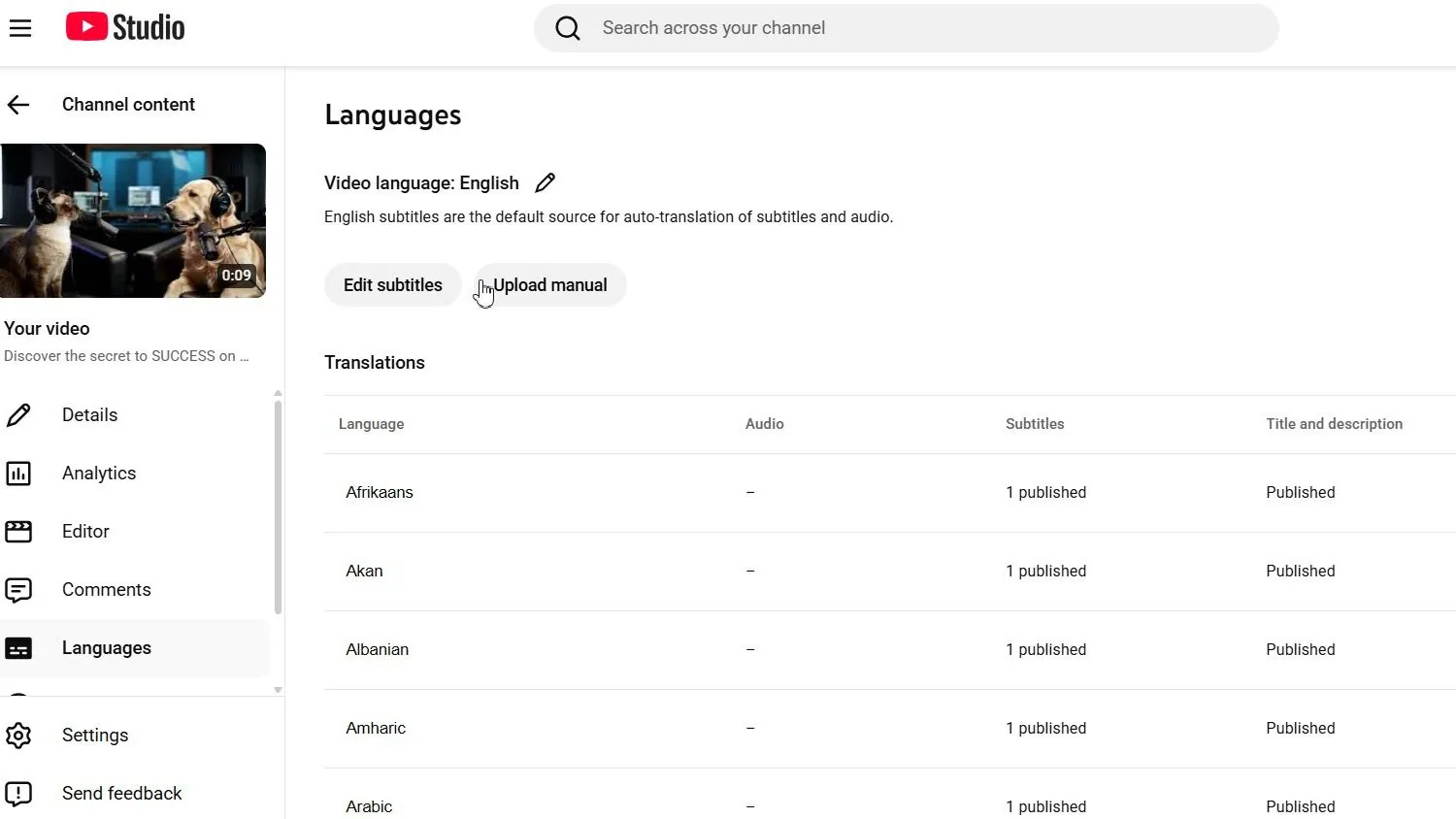
The title matters most. It is what people read in search results and recommendations before they decide to click. Here is the same video as a viewer with Estonian set as their language sees it:

Not sure which languages to start with? See the best languages to translate YouTube videos into.
How to translate a video's title and description in YouTube Studio
You can do it by hand, one video and one language at a time:
- Open YouTube Studio and choose Subtitles in the left menu.
- Click the video. If YouTube asks for the video's language, set the language you speak in it.
- Click Add language and pick the language you want to add.
- In that language's row, click Add under Title & description.
- Type or paste the translated title and description, then click Publish.

A translated title has the same limit as the original: 100 characters. A description can be up to 5,000 characters. Keep the keywords people search for in that language at the start of the title, not a word-for-word copy of your original.
Adding translated subtitles
In the same row, click Add under Subtitles. You can upload a subtitle file in that language or type the text. To get the file, you first need subtitles in your own language and then a translation of every line, with the timing kept. For a 10-minute video, that is a few hundred lines per language. For more on this, read how to translate YouTube subtitles automatically.
Translating your channel name and description
In YouTube Studio, open Customization → Basic info and add a language under your channel name and description. This is done once per language, so the manual way is fine here.
Where the manual way stops working
Translating one video into one language takes a few minutes. A channel is a different job:
- The work multiplies. 50 videos in 20 languages is 1,000 titles and 1,000 descriptions to translate, paste and publish, plus 1,000 subtitle tracks.
- Every edit starts it again. Change a title or a link in the description, and every language version is out of date.
- Machine translation needs checking. A literal translation of a title is rarely what people in that country search for, and it can go over 100 characters.
- Old videos stay behind. In practice creators translate the next few uploads and never get to the back catalog, which is often where most of the views are.
This is why most channels only ever translate a handful of videos, or none.
How to translate your whole channel with Creator Tools
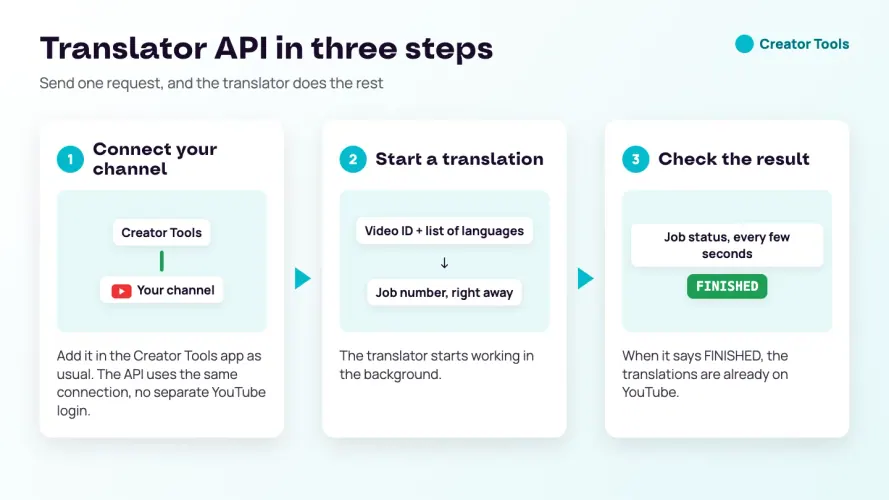
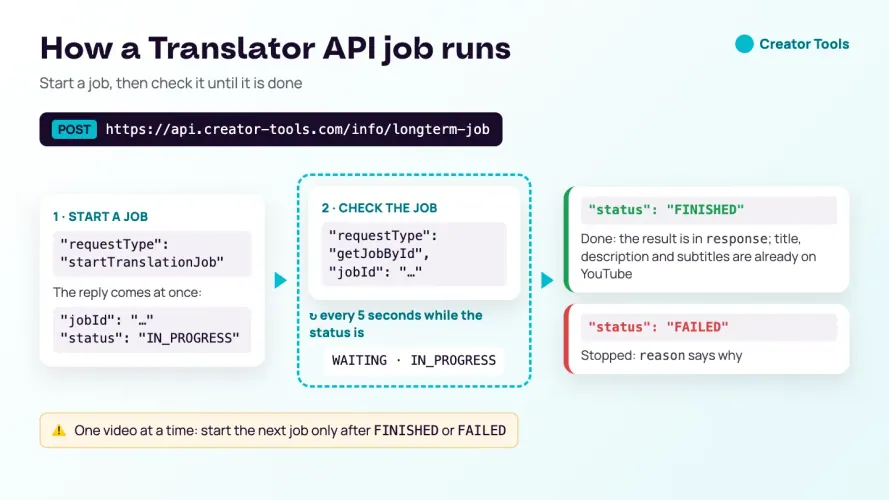
Creator Tools translates your videos' titles, descriptions and existing subtitle tracks into up to 143 languages and publishes them to YouTube for you through the official YouTube API. It does not change your video or its audio.
Step 1. Sign in with Google
Sign in with the Google account that owns your YouTube channel and allow access, so the service can add translations to your videos.

Step 2. Choose your channel
All channels of that Google account appear in the list, personal and brand accounts alike. If yours is missing, sign in with another Google account.

Step 3. Pick the languages
Open Translation settings. Choose languages one by one, use a preset bundle of 50, 60, 70, 90 or 110 languages, or select all 143. Turn on what you need: Including subtitles, Including hashtags, Rewrite and Regional language options.

Step 4. Translate
Click Translate video! next to a video. In about 15 seconds the translations are on YouTube. For the back catalog, translate up to 200 videos in one batch instead of one by one.

Step 5. Check the result in YouTube Studio
Open the video in YouTube Studio → Subtitles and refresh the page. Each language now has its title, description and, if you turned subtitles on, its subtitle track. You can still edit any of them by hand.
Want every step with screenshots, including the AI assistant that suggests titles, descriptions and tags? See the full Translator walkthrough.
Subtitles: what to know before you translate
Creator Tools translates the subtitle tracks your video already has. It does not create subtitles from the audio and it does not dub the video. If a video has no subtitles yet, add them in YouTube Studio first (your own file, or YouTube's automatic captions after you check them), then translate.
Need the video to be heard in other languages, too? Creator Tools Speaker turns subtitles into an AI voiceover in 44 languages, as an .mp3 you can add as an audio track. Step by step: how to voice over a video from subtitles, then how to add an audio track in another language on YouTube.
Live streams
A live stream's title and description can be translated while it is live, so viewers in other countries find it in their language. Its subtitles can be translated after the stream ends. The stream itself, its voice and video, are not translated.
What changes after you translate
Translated titles and descriptions let YouTube show your videos to viewers in other languages, in their search results and recommendations. Here is the audience of one channel by country, before and after it translated its videos:

Viewers from countries with higher ad rates also earn you more per view, so the same number of views can bring in more revenue. Worried that many languages look like spam to YouTube? Read what YouTube says about translated content.
How many translations you need
One language for one video is one translation. To estimate a month, multiply the videos you publish by the languages you want, and add 5–10% for experiments. For example, 8 videos in 50 languages is 400 translations. Translating your back catalog is a one-time job on top of that.
New users get 300 free translations, enough to translate a few videos into dozens of languages and compare the views with your other videos. Plans and one-time packages are on the pricing page.
FAQ
Can I translate my YouTube channel into other languages?
Yes. Every video can have its own title and description in each language, plus subtitle tracks in each language. Viewers whose YouTube language matches one of them see your video in their language. You can add them by hand in YouTube Studio or with a tool that works through the YouTube API.
Does translating titles and descriptions change my video?
No. The video, its audio and your original title stay as they are. Translations are extra versions of the title, description and subtitles that YouTube shows to viewers who use another language.
Will Creator Tools make subtitles for my video?
No. Creator Tools translates the subtitle tracks your video already has and uploads them in each target language. If a video has no subtitles yet, add them first in YouTube Studio, then translate them.
How many languages can I translate a YouTube video into?
Creator Tools supports 143 languages. You can pick them one by one, use a preset bundle of 50, 60, 70, 90 or 110 languages, or select all 143.
How many translations does one video use?
One language for one video is one translation. Translating one video into 143 languages uses 143 translations. New users start with 300 free translations.
Is translating titles and descriptions allowed on YouTube?
Yes. Translated titles, descriptions and subtitles are a standard YouTube Studio feature. Creator Tools adds them through the official YouTube API, the same place where you would type them by hand.