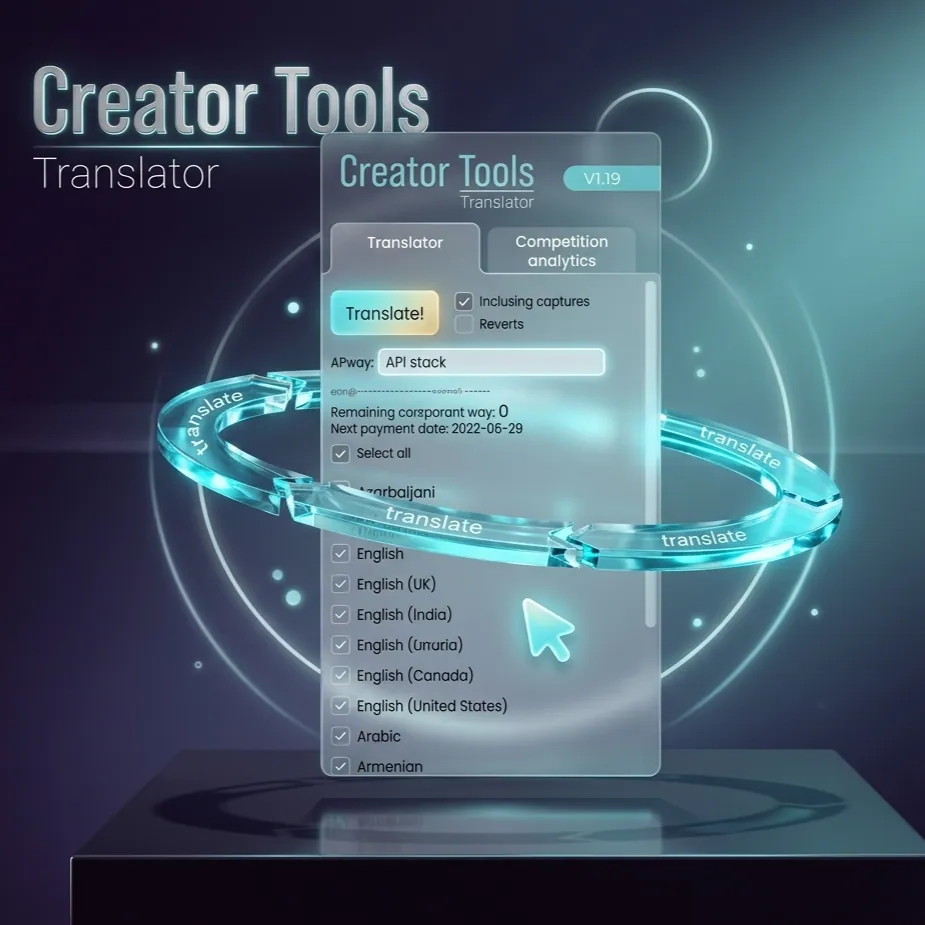
The Creator Tools Translator Is Now Available by API
Until now, translating a video with Creator Tools meant opening the app, picking a video and choosing languages. That still works. But if you publish a lot, run several channels, or already have your own upload workflow, you can now do the same thing from code: send one request, and the translator does the rest.
What the API Does
The API gives you the same translator you use in the app, without the clicks. For any video on a connected channel it can:
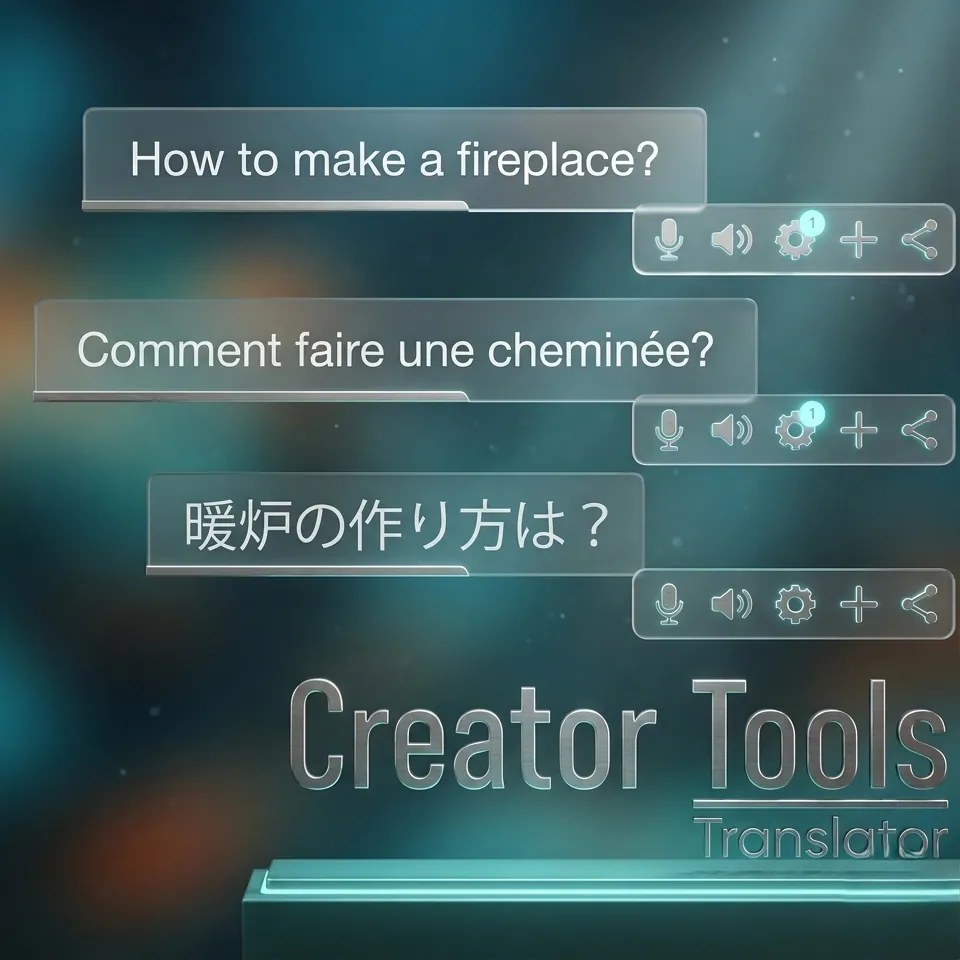
- Translate the title and description into the languages you choose
- Translate the subtitles as well, if you ask for it
- Translate your channel name and description when no video is given
- Write the translations straight to YouTube, so viewers see them right away
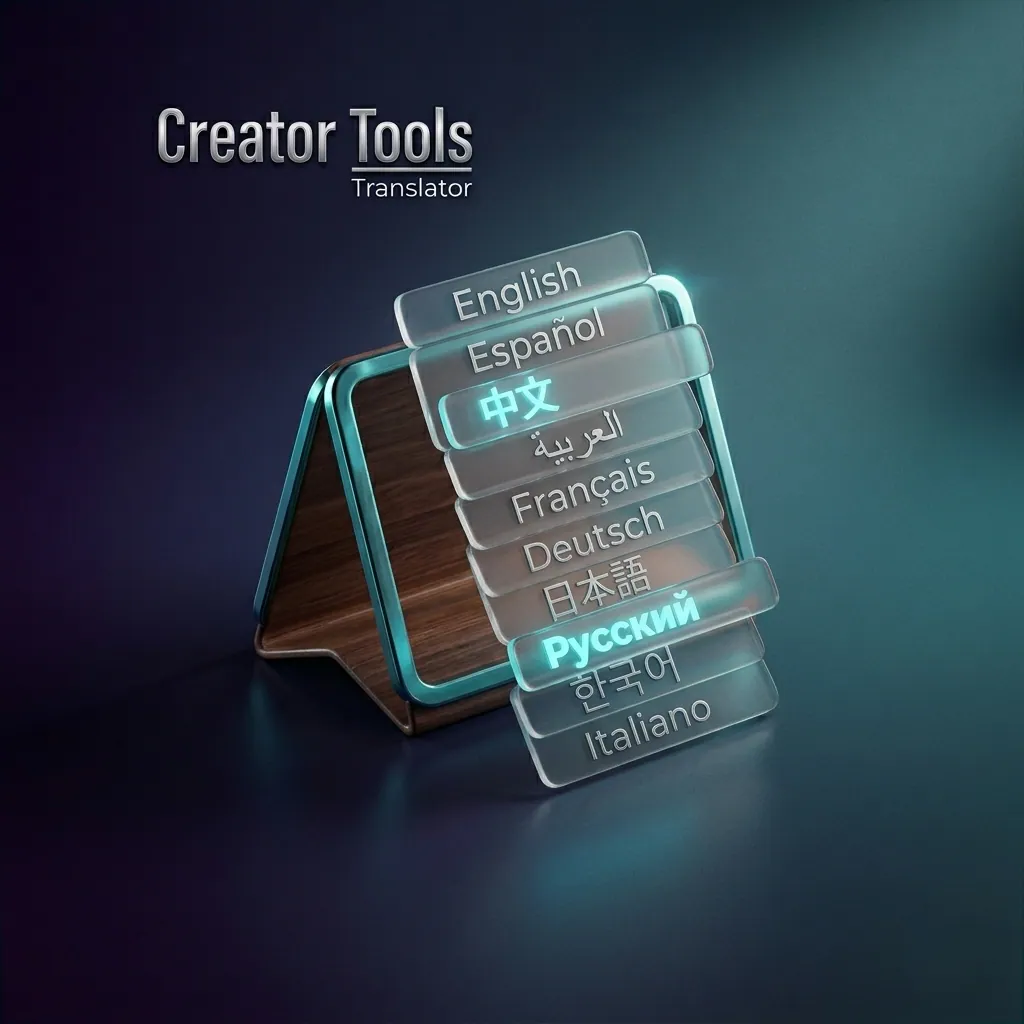
All app settings are available: tone of voice, keeping hashtags and mentions as they are, leaving marked words untranslated, regional variants such as Brazilian Portuguese or Mexican Spanish, and a special mode for songs and poetry.
Who It Is For
- Creators with a steady upload schedule who want every new video translated as soon as it goes live
- Studios and agencies that manage many channels and want translation inside their own tools
- Developers and automation fans who connect services with scripts, Zapier-style tools or their own backend
If you translate the same way after every upload, that step can run by itself.
How It Works in Three Steps
Step 1: Connect Your Channel in the App
Log in to Creator Tools and add your channel, just as you normally would. The API uses the same connection, so you don't need a separate YouTube login.
Step 2: Start a Translation
Send a request with the video ID and the list of languages. The translator answers at once with a job number and starts working in the background.
Step 3: Check the Result
Ask for the job status every few seconds. When it says FINISHED, the translations are already on YouTube. A video with long subtitles and many languages takes longer than a short one.
What You Need
- A Creator Tools subscription with translations left — the API uses the same balance as the app
- A channel connected in the app
- A gateway key for the API: ask the support team at info@creator-tools.com or through the Creator Tools bot
- Your personal key and channel details, which you copy from your browser once. The API guide shows exactly where to find them.
Keep these keys private. Anyone who has them can start translations on your channel and spend your balance.
Good to Know
- One video at a time. Start the next translation only after the previous one has finished. This keeps your balance accurate and avoids YouTube limits.
- Existing translations are kept. Languages that a video already has are skipped unless you ask to overwrite them.
- More than 140 languages. The API uses the same language codes as YouTube, from
esanddetopt-BRandzh-Hans. - Clear errors. If something is wrong — an expired channel connection or an empty balance — the reply tells you why.
Get Started
Everything you need to send your first request — where to find your keys, every setting, ready-to-copy examples and the full list of language codes — is in the guide:
Creator Tools Translator API: Developer Guide
Prefer not to code? Nothing changes for you: the translator in the app works exactly as before.