Module 10. Audience: YouTube Comments, Auto-Replies, and Moderation
A view means someone gave your video a little time. A comment means more: they came back and started a conversation with you. In this lesson we cover how to reply to comments, including the unpleasant ones, how to hand the repetitive part to an AI assistant, how criticism differs from hate, what to set up in moderation, and how posts and polls keep a channel alive between videos.
1. Why this lesson matters
On Sunday at ten in the morning, Emma's fifth video went live: "One-pan dinner, no meat," one of the topics from the topic matrix, the planning table you built in Module 9. It published itself on schedule; the calendar worked. On Tuesday a comment appeared on it: "Could you do the same thing with no cheese at all? My kid is allergic to dairy."
Emma read it four times. She started typing a reply and deleted it. Started again, deleted it again. "What do I even say? What if it sounds stupid?" The comment sat there unanswered for three days.

That was a mistake. The last three modules were about getting the video watched: title, thumbnail, consistency. A comment is the next step up, and it carries more weight. A view means someone gave your video a little time. A comment means someone watched, came back, and started a conversation with you. YouTube itself lists comments among the engagement signals it reads, the things it counts when deciding whether to show a video to more people, right next to likes and shares. A like costs one tap. A comment costs real effort.
A comment does something else, too. Your reply pulls in the next comment, the conversation grows, and the discussion stays alive longer. Silence stops it at the first step. That's exactly what Emma did to her most valuable comment of the month.
Paul's week was rougher. On his video about adjusting brakes: "This doesn't work on disc brakes. Waste of time." No smiley, no "thanks for the video." Unpleasant to read, tempting to snap back.
Both cases come down to the same skill, and that's what this lesson teaches. If you have no comments at all yet, Section 5 is written for you; the rest of the lesson will be waiting when the first one arrives. We'll cover how to reply to comments, including the unpleasant ones, and how to hand the repetitive part of that work to an AI assistant that can answer a viewer within 10 minutes. We'll separate criticism from hate comments, because mixing them up is expensive. We'll set up moderation so rudeness doesn't take over the comments. At the end we'll open the Posts tab, where a three-line poll picks your next video topic better than days of going back and forth.
2. The main idea
A comment is the most valuable thing a viewer can give a video for free, and the only thing a creator can answer. A reply extends the discussion, the discussion strengthens the video, and a viewer who got a reply comes back. On a small channel this matters most: where comments are counted in single digits, your reply carries more weight than it would on a channel with a million subscribers. That advantage shrinks as the channel grows, so it's worth the most right now.

3. Terms we'll use


I'll explain everything else where it first comes up.
4. Does replying to comments help your channel?
Let's start with small-channel math. Every hundred views brings one or two comments. I run dozens of channels with millions of views between them, and that ratio has held for years, across topics and languages. So a video with 300 views gets three to six comments. Each of those is a person who spent time on you twice: first to watch, then to write. Staying silent is like walking past someone who just said hi.
What replying to comments does for a channel in practice:
- The viewer comes back. Someone who got a reply from the creator often returns to see what you wrote, and sometimes watches another video while they're there. Above all, they remember that this channel answers. On a million-subscriber channel their question would have been lost among thousands. On yours, they got a conversation with the creator.
- Video topics. A question like "can you do it with no cheese?" is a ready-made topic. Remember the "answers a question from the comments" column in the topic matrix from Module 9? This is where it fills up. Comments show you what viewers want, for free, without you lifting a finger.
- What YouTube sees. In Module 6 we looked at the first hours after a video goes live: YouTube watches how viewers receive it, how long they watch, whether they hit Like. A live discussion on the video tells the system the same thing: viewers care about this one. Your replies feed that discussion, because people answer a reply more often than they answer silence.
This connection has been measured. Researchers analyzed 87,232 comments on 647 videos and worked out how creator replies affect viewer activity. They studied Korean beauty channels, so take the direction, not the percentages: the more a creator replies, the livelier the viewers behave on the video.
The same paper has a finding that matters more than the headline numbers: the effect of creator replies grew where there were fewer commenters. In practice, on a video with three comments your reply is visible to everyone; on a huge channel it gets buried. On this one point, the small channel beats the big one.

On my kids' channel, YouTube switches comments off itself: it's content for children, and no setting overrides that. So I know the value of a live discussion from the other side. Without it, a channel flies blind: no questions, no hints, no real people, just numbers on the stats page in Studio. You do have a discussion. Answer it.
If your channel is for kids, read this lesson differently. Your feedback lives in the numbers: how long people watch and where they stop tells you what they like, and that's the whole next module. Don't skip the sections on trust and posts; the honesty rules are the same for any audience. You can skip the comment exercises with a clear conscience; the platform decided that for you.

Do this now
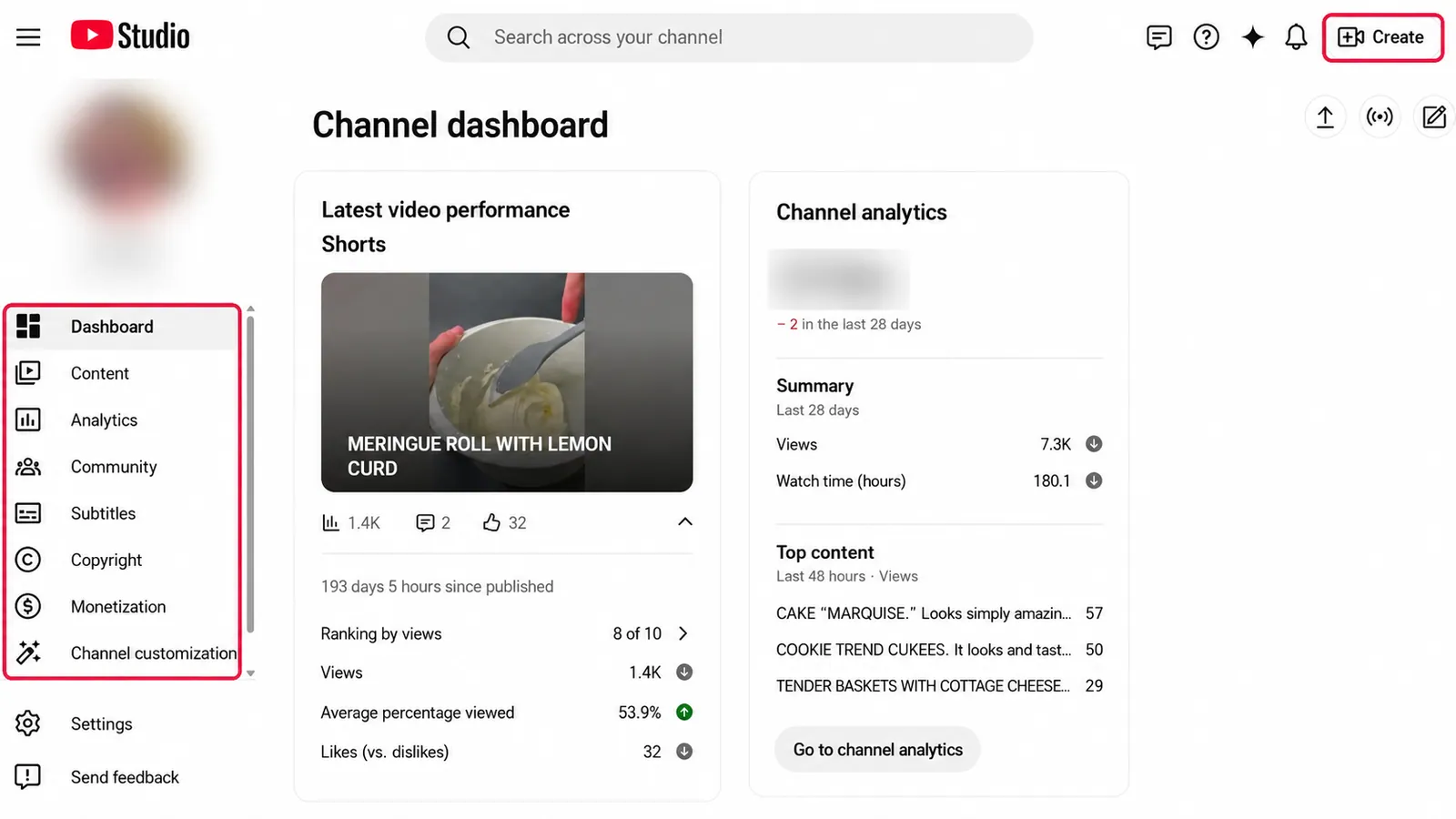
Open YouTube Studio, go to Community, then Comments, and simply count how many questions on your videos are still unanswered. You'll need that number for the practical exercise. If you counted zero, the next section was written for you.
5. Why is no one commenting on your YouTube videos?
Most beginners are in a different situation. There are no comments on your videos. None at all. And while this whole lesson explains how to reply, you have one question: "What am I supposed to do? Nobody's writing anything."
Do the math first. The ratio from the last section cuts both ways: one or two comments per hundred views means that at 30 views, zero comments is business as usual. Count across several videos, too: a single video with 300 views can stay silent if those viewers came from search and passed straight through. Emma had no comments at all on her first three videos, and "Could you do it without cheese" only arrived on the fifth. Silence at the start is a matter of small numbers. It says nothing about the quality of your videos.
You can plant the first comment yourself. Pin a comment on your video with a real question for viewers: "Working on the next one. What's more useful to you: weekly meal prep or dinners that don't need an oven?" Answering a question is easier than starting a conversation from scratch: you're making the hardest move, the first one, for them. It doesn't work instantly and it doesn't work every time, but the opening line is entirely in your hands. A second opener, a real question inside the video itself, is waiting for you in the next section.
Don't ask friends and family to "support the channel with comments." Polite comments look like polite comments. They give you no video topics, your relatives won't ask real questions, and it's easy to get comfortable with applause that means nothing. One real first comment from a stranger is worth 10 friendly ones, and if you publish regularly it will almost certainly come: on the third video for some, on the fifteenth for others.
The posts and polls in the second half of this lesson work at zero comments too; a handful of subscribers is enough. So this lesson still applies to you this week. You'll just be starting with your own question to viewers.
6. How to reply to YouTube comments: rules and examples
There aren't many rules, and they all fit into one: write the way you'd answer a friend in your kitchen.
- Reply fast, ideally within the first 20 minutes. The viewer wrote to you and went on watching: they'll see other videos, comment on other channels, and won't remember where they asked. A reply that arrives while they're still on your video gets read and, most likely, answered. All your channel's comments sit in one section of the free YouTube Studio app (a separate app, not regular YouTube). Section 7 shows how to answer within minutes without sitting at a screen.
- Old videos and late replies still count. On videos people find through search, comments keep trickling in for months. Answer those too: for the next viewers, the video came out today, and they'll see the creator's reply. If you dropped off for a week, reply anyway: a late reply beats silence.
- Short is fine. "Thanks, it worked!" needs nothing more than "Yes! Glad it worked." Don't force a paragraph of pleasantries in reply to every one-liner. Answer questions briefly and to the point.
- Answer a question with a question. The best reply keeps the conversation going. Emma's eventual answer: "Easy without cheese: in this recipe it's only there for the crust, so skip it or top with breadcrumbs. What vegetables does your kid actually eat? I'll think about some recipes." One comment, and she has a dialogue, a video topic, and a person who now feels at home on the channel.
- Pin the useful ones. Pin the best question together with your answer: the next viewers will see a live discussion instead of an empty comment section. A pinned comment can also be your own: a clarification to the recipe, a correction, a link to the next video. On a computer, the three dots are to the right of the comment; in the app, in the top right corner of the comment itself. Click them, then Pin.
- Mark good comments. A heart from the creator (only you can give it, and every viewer sees it) and a like cost nothing and make the viewer's day. Spend them generously.

Whether replies pay off has been measured on other platforms as well. Buffer looked at almost two million social media posts. Where the creator replied to comments, people replied and liked noticeably more often, and that held on every platform they checked. YouTube wasn't among the sites they looked at, so I won't carry their percentages over. But small channels show exactly the same thing: replies get replies.

You've probably seen the advice "engage more in the comments, the algorithm loves it." Just don't fake it. A token question at the end of a video for the sake of it ("What do YOU cook for dinner? Tell me in the comments!!!") is something viewers can spot from a mile away. Only a real question works: ask about something you'll actually use in the next video, and read the answers. Thirty seconds of a live reply on a small channel is visible to everyone who opens the discussion.
One day a comment will appear on your video in a language you don't know. It doesn't come from nowhere.
Translations work like this. As long as your title and description exist in one language, YouTube shows the video mainly to people who speak that language. Once the video has translations, YouTube can start showing it to Spanish, German, Hindi, and Portuguese speakers, and it does. Add translations to every video and YouTube will start pushing you to audiences that don't speak your language at all. That's where the first comments in Spanish or Hindi come from: those viewers were brought in by your own translation.
We covered how in Modules 6 and 7: Creator Tools prepares the title, description, tags (keywords), and subtitles in dozens of languages in one pass; you check and publish. The step-by-step guide with every screen is in the article how to take your channel to the global market, and there's a video walkthrough.
The first thought when you see such a comment is usually "spam." Mostly it isn't. Spam bots (scammers' scripts; you'll learn their tells in Section 9) flatter you and ask you to message them privately, on Telegram or WhatsApp. A real foreign viewer asks an ordinary question about the recipe or the tool. Reply: paste the comment into any translator and write a short answer in their language. It's also a hint for the next video: if questions keep arriving from one country, that translation is working, and the next video should get it too.
If you make Shorts, the rules are the same, but the crowd is different: on short videos there are more people passing through from the feed than your own viewers. Answer the questions and calmly skip the rest, and don't judge your regular viewers by what random scrollers say. If a Short suddenly takes off and the comments run into the hundreds, the rule holds: pick out the questions; nobody's making you answer the rest.
Do this now
Reply right now to two or three of the comments you found in Section 4. Start with the questions: their authors have waited the longest. If there's no one to reply to yet, write the pinned question from Section 5.
7. How to auto-reply to YouTube comments with Creator Tools
As Section 6 said, you have about 20 minutes to reply while the viewer is still on your video. And sitting at a screen waiting for a comment to appear is not something anyone keeps up for long.
That's the job of the AI assistant in Creator Tools. It reads the comment, looks at your video's title and description, and prepares a reply. In manual mode you review the drafts and send them. In autopilot mode the assistant finds new comments on its own and answers them within 10 minutes. That's how I work on my channels every day.
What the assistant handles best:
- Repeat questions. "Can I skip the cheese," "how long in a gas oven," "what size wrench do I need." You've typed that answer 10 times already; the assistant takes it from here.
- Comments in other languages. The situation from the previous section: the assistant reads the question and, if you told it to in Step 2, answers in the viewer's language. No copying text into a translator.
- Thank-yous. "Thanks, it worked!" and "great, waiting for the next one" deserve a reply too, and nobody minds a stock reply to those.
- Piles of old questions. Six months of unanswered questions on old videos that you'd never sit down to clear by hand become one evening's work with the assistant.
What you still handle yourself. Criticism with a point: you answer "the sound is muffled" and "doesn't work on disc brakes" yourself, using the formula from Section 8, because the assistant doesn't know what's true about your video and what isn't. Hate comments with no substance: they get no reply at all, and their author gets hidden; that's Section 9. Viewers' personal stories: a stock reply won't do for "my kid is allergic." Profanity and harassment get removed, by the Blocked words list from Section 10 or by you when you spot them. So check the comments yourself every few days, to see what's going on there.
In the drafts themselves, watch the facts: the assistant doesn't know you changed the recipe in the latest video, and you do. Watch the tone: if you say "you guys" on camera and the draft sounds like a customer service desk, fix it. Watch the length, too: three polite paragraphs where one line would do, and the reader spots the machine instantly.

Step 1. Open the section and pick a channel
In the top menu of the Creator Tools dashboard at app.creator-tools.com, the service you signed into in Module 6, find AI comments replies. That's our assistant.
At the top of the page you'll see the channel switcher: with one channel it's selected for you; with several, switch to the one you need. You connect a channel with Add channel, through the same Google sign-in as in Module 6.
On the right is Refresh comments. Click it so the service pulls the fresh questions that came in since your last visit.

Step 2. Set the tone, the "you," and your rules
The settings column runs down the left. Here you decide once how your channel talks to viewers. At the very top is the Responses left counter. You pay per reply. The first batch is free, no card needed; after that you buy a bundle of replies. A reply is charged the moment its draft is prepared; whether you send it or throw it away afterward makes no difference. So don't prepare drafts "just in case."
- Role: Male, Female, or Company. In English this changes little, but it matters in the languages your viewers may write in, where the grammar changes with the speaker's gender: in Russian or Polish, "I tried" comes out differently from a man and from a woman. If a team or a shop runs the channel, pick Company.
- Form of address. Some languages have a polite "you" and a casual "you" (Spanish usted and tú, German Sie and du), and the assistant uses your choice whenever it replies in one of those languages. You'll never see the difference in English replies. For a personal channel pick You (informal); pick You only if you chose Company or your channel is formal by nature.
- Tone. Go with Friendly: it suits cooking channels and repair channels alike. There are eight tones on the list. You won't need the other seven at the start, and one of them, Aggressive or persistent, you'll never need, whatever people write to you.

Below that is Additional instructions: click it to open a text box. This is where you write, in your own words, the rules the assistant can't know. For example: "If someone asks for the recipe, point them to the video description. For oven temperature questions, answer 350°F (180°C). If the comment isn't in English, reply in the viewer's language. Always thank them for watching." There may be plenty of repeat questions, and the replies will come out similar, in different languages. That's fine: every viewer reads their own reply.
At the bottom of the column is the Hide Rude Comments checkbox. Leave it off for now: the service doesn't explain exactly what it does with a comment, whether it hides it for good or sends it for review. Rudeness will be handled by the Blocked words list we'll set up in Section 10.

Step 3. Choose the comments to work on
The middle of the screen is the list of comments. Each one is tied to its video: on the right you see the thumbnail, the title, and the link All comments for this video. If a viewer wrote in another language, the service shows a translation right under their text, so you're never guessing what the question is.
Check the box on the left of a comment, or use the select-all box above the list and take the whole batch. Just run through the list first and uncheck the rude ones, the spam, and any criticism with a point: you'll pay for their drafts and you won't be sending them. Next to the selection, the button Generate AI responses for N unanswered comments! appears, with the count. That's the one to click.
To the right of the button is the autopilot switch. While we're working by hand you don't need it; we'll get to it at the end of this section.

Step 4. Confirm
The service shows a confirmation window: how many replies it's about to prepare and how many you'll have left. Check the number and confirm.
Step 5. Read the drafts and decide what goes to YouTube
A few seconds later, a ready reply appears under each selected comment. Nothing gets posted yet: until you confirm them, the drafts sit in the service and viewers don't see them.
Those few minutes of reading are your job. Go top to bottom and decide one of three things for each draft: keep it as is, fix it by hand, or don't send it at all. I listed what to look for above: facts, tone, length. Want to change something? Edit the draft right here. A reply that's already gone out can be edited too: open it on the comment via the "1 reply" line, click Edit, and the text updates on the video.
When you've gone through the list, check the box at the bottom that says you've read the replies and take responsibility for them (the service's guide words it as "I have read and agree to publish the responses"). Then click the button that publishes them (the guide calls it Save Replies). The checked replies go onto your videos as your own.

Step 6. The replies go to YouTube
After you save, the replies go up on YouTube through the access you granted when you connected the channel. You'll see a success message.
For the viewer it's an ordinary reply from your channel, exactly as if you'd typed it yourself.
Step 7. Autopilot: the channel answers without you
Everything you just did by hand, the assistant can do on its own. The autopilot switch sits next to the generation button: Turn on auto-replies. Switch it on once, and from then on the service checks for new comments on your videos every 10 minutes and answers them on the channel's behalf. The viewer gets a reply within minutes whether or not you're anywhere near a screen.
Manual mode is good when you're clearing a pile of old questions or want to proofread every line. Autopilot is good when the channel has to answer without you, which is most of the time.
Click the switch and a settings window opens, Enable auto-replies for comments?
- How often and how many. Every 10 minutes, the latest 50 comments, new ones only. The assistant won't dig into a five-year-old archive. It doesn't reply to replies yet, either: if you asked a viewer a question and they answered, you carry on that conversation yourself.
- Daily and hourly limits. Both start at No limit. Set your own number, say 20 an hour: if a wave hits one of your videos, you won't spend more replies than you planned. It's also insurance against YouTube's spam rules: hundreds of near-identical replies in a row look like spam to the platform, and the penalty can go as far as a strike.
- Stopwords. Words, separated by commas, that make the assistant skip a comment. Start with the scammers' vocabulary: telegram, whatsapp, promote, giveaway, subscribe back, you won. Then the insults aimed at you (for Paul that's "embarrass" and "amateur"), and the topics you want to keep in your own hands: money, sponsorship, complaint. If one of those words shows up, the assistant leaves that comment for you.

Before switching it on, fill in the stopwords and set a limit, and cut off rudeness and spam with the Blocked words list from Section 10: then the assistant never reaches them.
After that, check the comments every few days to see what viewers are asking about. That's five minutes, and it's also where your next video topics come from.
Do this now
Connect your channel, set the role, the form of address, and the tone, and write a couple of your own rules into Additional instructions. If a dozen unanswered questions have already piled up on your videos, run three of them by hand and see how the assistant phrases things. If there are fewer, the assistant is set up and you'll come back to it when the questions pile up. Until then, write the replies yourself: at three comments a week that's faster and better.
8. How to respond to criticism on YouTube
Back to the comment on Paul's video: "This doesn't work on disc brakes. Waste of time." The first urge is to justify yourself or fire back. Paul took a breath, reread it, and saw something else in it. The guy was right: the video really does cover only rim brakes, and disc brakes aren't mentioned once. And here was a ready-made topic, dropped right in his lap.
He replied: "Fair point: this video only covers rim brakes, and I should have said so up front. I'll do a separate one on disc brakes; they work differently." Two weeks later the follow-up video was out, straight out of the "answers a question from the comments" column. Paul never checked whether the sharp-tongued commenter came back; the video found its viewers without him.
That's how criticism works if you don't push it away. Criticism is always about the video: "the sound is muffled," "the point only comes at minute five," "this method doesn't work in my case." It stings to read, but someone is telling you, for free, what to fix. You'd spend weeks digging that list out of your channel's stats.
The formula for a calm reply to criticism is simple: admit what's true and say what you'll change. No three paragraphs of excuses and no counter-accusations. To "the sound is muffled, I couldn't make out half of it," Emma replied: "Agreed, the sound let this one down; I recorded on my phone from the far end of the kitchen. Next time I'll try recording closer." Replies like that are read by more than the people they're addressed to: everyone who opens the discussion sees a creator who listens to viewers and gets better.
The numbers on this come from a different field: hotel reviews. Researchers took over 300,000 reviews of Texas hotels on TripAdvisor and compared hotels before and after they started replying. Hotels that replied gained about a tenth of a star in their rating. Invisible to the eye, but across hundreds of reviews it's the difference between 4.3 and 4.4, and that's the number people book by. The number of reviews went up by 12 percent, and the complaints that remained got longer and more detailed: unhappy guests wrote scathing one-liners less often when they knew the owner would read and reply. Expect the same pattern on your videos.
One more finding from the research on replying to complaints: every reply you write has two readers, the person complaining and the silent bystander who simply opened the discussion. To the second one, a calm reply says more about the channel than 10 compliments.

Do this now
Find one critical comment on your videos, one with a point, not a rude one. Write a reply by the formula: admit what's true and say what you'll change. If there's no criticism yet, draft a reply to the most likely complaint about your latest video: it'll come in handy when the real one arrives.
9. How to deal with hate comments on YouTube
Sooner or later you'll get a different kind of comment: "who needs this amateur stuff," "aren't you a bit old for YouTube?", "quit before you embarrass yourself." Not one word about the video. That's a hate comment, and it needs a different approach from criticism.

It happens to almost everyone. Google surveyed 135 American creators, and here's what they found:

The first line settles the "why me" question. Abuse reaches almost everyone who posts videos, and it has nothing to do with your videos. The last two lines show the real cost of hate comments: the creator goes quiet about the very thing they came for, or leaves altogether. That's why your rule for haters should be written in advance, with a cool head. The creators in that survey give beginners the same advice: have a plan before it hits.

Here's my plan.
- Don't argue. An argument with a hater turns into entertainment for them, at your expense, and you pay with your time and your peace of mind. You can't win that argument: they didn't come to be convinced. Experienced creators say it almost word for word: a hater reads any reply as proof they got to you, and comes back.
- Hide them. The same three dots you used for pinning in Section 6: click or tap them and choose Hide user from channel (on the watch page the item is just Hide from channel). That's the block. They get no notification and there's no drama; their comments simply stop appearing on your channel. In a separate study, 19 YouTube creators said they prefer exactly this route: the person doesn't realize they've been hidden and doesn't create a new account to get around it.
- Remove abuse. Insults, harassment of your viewers, calls for violence, and profanity go immediately, by deleting or through the Blocked words list in the next section. Keeping that on your video for the sake of "free speech" helps no one.
- Never delete criticism you've mistaken for a hate comment. The temptation is strong: it stings. But a channel where every video has nothing but "Awesome!" underneath looks suspicious, like a restaurant where all the reviews sound the same. A live discussion with disagreement in it shows the channel is healthy.
You're responsible for what goes on in the comments on your video, and beginners find that out too late. If it's all swearing, mutual insults, and three fights in a row, the creator is the first to blame: somewhere they provoked it, then let it pile up. A viewer who opens the discussion and sees a garbage fire walks away with an opinion about the channel; the individual troll is irrelevant to them. So cleaning up the comments is part of your work, just like editing.
Then there's the rare but serious case: threats and clearly illegal content. That's a violation of YouTube's rules. Report such a comment: the same three dots, then Report. The platform takes it from there. Just don't count on the report settling the matter by itself. In the same survey, 55 creators out of a hundred called reporting useful, among the lowest scores of any protection. Moderation settings, which the next section is about, scored higher: 82 out of a hundred. So report, and hide the user right after. If the threat is direct, against you or your family, go to the police as well as reporting: the law applies online too.
There's a third kind of visitor: spam bots, scammers' scripts that post identical comments on thousands of small channels in a row. They look flattering: "Great content! Want to grow your channel? Message me on Telegram," "Congratulations, you've won, contact us on WhatsApp," generous offers claiming to come from famous YouTubers. Don't celebrate your "first fan" and don't reply. Report, hide, move on. Real companies and creators don't give away prizes in the comments.
One comforting thing before we move on. Hate comments mostly come from drive-by viewers the system dropped onto your video; your viewers don't write like that. A hater is noise outside the window: you close the window and get back to work.

Do this now
Write your rule for haters in one line and keep it wherever your content plan lives: what you hide immediately, what you answer calmly, what you never argue about. A rule you wrote calmly is the one that saves you when you're angry.
10. YouTube comment moderation settings in Studio
Part of this work is done for you by YouTube's own automation. You won't be visiting these settings every day; one look is enough to learn where everything is.
First, where to find it, because you could hunt for a while.
On a computer. Go to studio.youtube.com, then Settings at the bottom of the left menu, then Community moderation in the window that opens, and the Content controls tab. Almost everything in this section lives on that one page; the lists of approved users and moderators are on the neighboring User management tab.
On a phone. In the YouTube Studio app, tap your profile picture, then Settings, then Community, then Content controls. There's no User management in the app, so add approved users and moderators on a computer. If you can't find something described below, you haven't broken anything: sit down at a computer once and set it up there. This is a one-time job.
The first thing you'll see is the line Comments on new videos and posts with the Moderation menu and its four options. "Moderation" here means checking comments before they go up. Keep that in mind for the first option. The word "new" is literal, too: the mode you choose applies to videos uploaded after you change it; older videos have to be switched separately (you can select several in the Content tab and edit them in bulk).
- None. Checking is off; comments stay on. Everything appears on the video right away.
- Basic. Comments YouTube considers potentially inappropriate go to your review queue. This is the usual starting point, and at the start it's enough.
- Strict. More goes to the queue, including borderline comments. Use it if Basic lets through things you don't want to see.
- Hold all. Every comment goes to the queue. You don't need this one; the reasons are at the end of the section.
YouTube catches obvious spam on its own and puts it in the same queue.
That queue is called Held for review, and here's how to open it.
On a computer: Community in Studio's left menu, then the Comments tab, then the Held tab above the list.
In the app: the Community tab at the bottom of the screen, then the comments and the same Held filter. If you can't find the filter in the app, open the queue once from a computer.
Whether to publish them is your call. Unreviewed comments sit in the queue for two months and then disappear on their own.
What else is on the same settings page:
- Blocked words. A field where you list, separated by commas, the words and phrases you don't want on your videos. Comments containing them go to the Held for review queue instead of appearing on the video. This is the most useful tool here. Fill it in on the first evening: profanity, insults, the insults aimed at you personally. After that, none of it shows up on the video, and you don't have to clean it out by hand.
- Comments with links. The switch is called Link text: hold comments and viewer posts with hashtags and URLs for review. A URL is a web address; a hashtag is a word with a # in front, like #recipes. That's all you need to know about those two words. Turn it on right away: ads and invitations to scam sites stop appearing by themselves. Your own comments and those from moderators and approved users skip the check and publish immediately.
- Approved users. People whose comments always publish without any checks.
- Moderators. When the channel grows, you can hand part of the comment work to trusted viewers. Not needed at the start; just know it's there.

Researchers asked 19 YouTube creators what they actually use, and two things came up most often: the Held for review queue with its default settings, and their own Blocked words list with the insults aimed at them personally.
Studio's Blocked words list and the stopwords in Creator Tools from Section 7 live in different places, on different sites, and you need to fill in both if you use both.
The same interviews turned up something else: creators moderate to set the tone for the comments. Abuse that stays up invites more of it, and a clean discussion works the other way round. Removing abuse quickly matters for one more reason: it doesn't land on you alone. Your viewers read it too, and not everyone has skin as thick as yours.
So what should you turn on now? Blocked words and the link switch, today; 15 minutes, once. After that, Basic moderation plus five minutes a day by hand is more than enough. The difference between deleting and blocking is simple: you delete what you and your viewers have already seen, while a blocked comment never appears at all. The second is cheaper and calmer. I'd also advise against Hold all: every comment will wait for your approval, the comment section will stay empty, and the conversation will die. That's a tool for channels drowning in abuse, and I hope you grow big enough to need it.
Last thing, so you don't go hunting for a problem that isn't there: on videos marked "made for kids," YouTube turns comments off itself. You set the audience during upload in Module 6. If a video has no comments at all, check that setting first.
Do this now
Open Settings, then Community moderation, and do three things. Check which moderation mode you're on. Put a dozen words you don't want on your videos into Blocked words. Turn on the switch for comments with hashtags and links. Then go to Community and open the Held for review queue: there may be a perfectly good comment that's been sitting there for a week without you seeing it.
11. What is the Posts tab on YouTube (formerly the Community tab)
Your videos come out once a week, every two weeks, or once a month, whatever Module 9 worked out. The rest of the time, the channel is silent. For that gap, YouTube has the Posts tab on your channel page: here you can publish posts, entries without a video.
What a post can hold: text, up to 10 images, a poll, a quiz with a correct answer, a link to a video or to a playlist (a collection of videos). Posts land in subscribers' feeds, and image posts also show up in the Shorts feed. A post can be scheduled in advance, too; I'll show how in the next section.
If you don't see a Posts tab on your channel, don't panic. By the platform's rules, posts aren't available on channels set as made for kids, on accounts a parent manages for a child, or anywhere in Germany. They can also disappear after a Community Guidelines violation. Otherwise posts are usually available: try creating the first one, and the tab appears along with it. On a computer, the Create button is at the top of the YouTube page, next to your profile picture; in the YouTube app, it's the round plus button at the bottom of the screen.
Why a channel that's silent between videos needs posts:
- To fill the gap. Between videos, put up a post with a short tip that isn't big enough for a video: "By the way, veggie fritters hold together better if you squeeze the grated zucchini dry and let the batter rest for 10 minutes." Five lines, the channel is alive, and the subscriber hasn't forgotten you.
- To announce. "Sunday's video is on disc brakes, you asked for it in the comments" gets your regulars ready for the release. The ones already waiting show up on launch day.
- To show the process. A photo of ingredients before a filming day, tools laid out, a funny shot from behind the scenes. Viewers like to see how the thing they watch gets made.
Keep the pace easy: one or two posts a week is plenty. One rule: a post should take five minutes. It's a light format; don't turn it into a separate production line with its own content plan and its own guilt.

Do this now
Write one post right now, in five minutes: a short tip from your topic that doesn't warrant a video of its own. Publish it or schedule it for the nearest day without a video.
12. How to create a poll on YouTube and pick your next topic
Of all the post types, the one doing real work is the poll, so it gets its own section.
Remember how in Module 9 we decided which topic from the matrix to put first? We looked at signs of what people want: what's taking off on channels in your niche, what keeps coming up in the comments. A poll gives you one more sign, the most direct of all: you ask your own viewers what to make.
Emma did it like this. She took two topics from the matrix she was actually ready to film and published a poll: "What should I cook in the next video: five dairy-free dinners, or make-ahead meals for people without a freezer?" Over a few days, eight people voted. Not many? For a small channel, that's normal: eight real viewers said what they're waiting for. Two votes would still be two real voices and still an answer. Zero means it's simply early: come back to polls after another 10 videos; they aren't going anywhere.
Votes need time to come in, so publish the poll several days before your filming day; the morning of the shoot is too late. You create it with the same Create button: click Create, then Create post (on a computer) or Post (in the app). In the post window, pick the poll icon and type in up to four options. You can schedule it right there: on a computer, the small arrow next to the Post button, then Schedule post; in the app, the clock icon at the top of the screen. Emma's poll goes out on Wednesday, and by Saturday's shoot the result is in.
What a poll gives you besides the chosen topic:
- A video people are waiting for. Viewers who voted for a topic come to watch "their" video; they ordered it themselves. That video has a better chance of a strong start.
- The right to say "you asked for it." "You chose dairy-free dinners, here they are" ties the poll to the video and shows that this channel listens.
- The channel stays busy while you're free. A poll is the best answer to "what do I do with the channel between videos": a minute to publish, and it works for days.
Leave quizzes for later: a fun toy, but it doesn't pick topics. Start with polls; they pay off right away.
Do this now
Build your first poll: two or three topics from your matrix, worded the way you'd say them out loud. Publish it or schedule it. If posts aren't available on your channel (Section 11), save the text for later.
13. How to build trust with your YouTube subscribers
Replies, handling criticism, polls: they all add up to trust, which you can't buy or fake. It builds slowly, and it keeps people coming back even when YouTube stops recommending you for a while.
- Consistency. Videos come out when promised; that's Module 9. The promise in the title is kept in the video; that's Module 7. A viewer who's never been let down comes back without reminders.
- Honesty in small things. If a dish fails on camera, leave it in the video with a comment on what went wrong. Viewers rewatch and share those moments more readily than the polished ones: a real person is more interesting than a flawless picture.
- Admitting mistakes. Got a fact wrong in a video? Pin a comment with the correction. People trust a creator who corrects themselves more than a creator who "never makes mistakes."
- Respect for the viewer's time. Don't pad the video for length, don't overpromise, don't beg for likes every two minutes. Viewers can tell when you're respecting their time, and they repay it by coming back.
Trust has been studied seriously, too. Researchers who study why viewers take a creator's advice keep finding the same two things: they trust the creator, and they feel like they know them. Looks made no difference. That feeling of knowing you comes from you talking about yourself, on camera or in how you write your replies, which is why vlogs build it fastest. The failed dish left in the frame is exactly that.
If you've come to YouTube with 20 years of a profession behind you, you start with trust already in the bank. People can hear experience in how you answer questions, the replies from Section 6 included, and viewers value it over any polished picture. Your age on camera doesn't get in the way.
Early on, this matters even more. Your first 50 to 100 subscribers came for you personally; there's no brand yet for them to come for. They're the ones writing the first comments, voting in polls, showing your video to friends. That's the base the channel grows from, and there's nothing to replace it with. Those are the people you can least afford to let down.
Still, comments, posts, and polls don't replace videos. No amount of activity in the comments will save a channel where videos come out once a quarter or don't deliver on their titles. A community can only amplify what's already there: regular videos.

Do this now
Rewatch your latest video with a stopwatch and find one place where you wasted the viewer's time: a long intro, a needless repeat, a plea for likes. Write that spot down in one line so it's gone from the next video.
14. Common beginner mistakes
- Silence in reply to comments. The first viewers came to talk, and the creator is shy: "I'll reply later," and never does. Reply, even briefly: "thanks" beats silence.
- War with a hater. Three days of back-and-forth with an anonymous account: zero benefit, lots of stress, and your normal viewers watching it happen. Hide and forget.
- Conversations with spam bots. "We'll grow your channel, message us on Telegram" is written by a scammer only pretending to be your first fan. Report, hide, move on.
- Manual mode without reading. If you chose manual mode for the sake of proofreading, read the drafts: you're the only one who knows the facts about your video. No time to read every draft? Then don't run manual mode at all: set autopilot up properly (stopwords, limits, Blocked words, Section 7) and skim the comments every few days.
- Deleting criticism. Sterile comments look fake, and the channel loses its free list of improvements. Delete abuse. Reply to criticism.
- A garbage fire in the comments. The opposite extreme: insults and a fight hang there for months, and the creator "doesn't want to interfere." They're the one who'll answer for it. A new viewer judges the channel by what they see in the discussion.
- Hold all from day one. Every comment waits for approval, the comment section is empty, the conversation is dead. That mode is for channels with a real abuse problem; a channel with five comments a week only gets hurt by it.
- Begging for engagement. "Like, comment, hit the bell" every three minutes irritates more than it helps. One real question on the topic works better than three token calls to action.
- Wall-of-text posts every day. A post is a light format: a poll, a tip, a photo. A daily thousand-word column eats the energy your videos need.
- Betting on community instead of videos. Regular videos first, everything else after. A poll won't save a channel that has nothing to show.
15. Practical exercise
Write your answers right here. Plan for two evenings: most of it can be done from your phone; set up moderation and Creator Tools from a computer. Items one through four are the required minimum. If your channel is for kids, the platform has turned off comments and posts for you (Sections 4 and 11), so you only need item five: save the poll text, it will be useful if you ever start a channel for adults. Skip the rest with a clear conscience. Everyone else needs the full list. Your answers are saved only in this browser: clearing browser data removes them. When you are done, copy the result into your notes.
1. Replies to every unanswered comment under your videos, right now
There aren't many yet; you counted them in Section 4. If the count is zero, this item closes itself and the next one becomes your main one.
2. One pinned comment under your latest video
The best viewer question with your reply or, while there are no viewer questions yet, your own question to viewers from Section 5.
3. One reply to criticism by the formula “admit what's true and say what you'll change”
Real or a draft from Section 8.
4. Your rule for hate
What you hide immediately, what you answer calmly, what you never argue about.
5. The text of your first poll
Two or three topics from your matrix, worded the way you'd say them out loud. If posts are available on your channel, publish or schedule it.
6. Five minutes for comments in your calendar
What time of day they'll live.
7. Moderation set up
Which moderation mode you're on, Blocked words filled in, the link switch on, the Held for review queue checked, obvious trolls hidden.
8. Three replies built with the Creator Tools AI assistant by Section 7
Only if a dozen unanswered questions have already piled up under your videos: what the assistant suggested and what you changed in its draft. If there are fewer questions, this item closes itself: the assistant is set up, and you'll come back to it when the questions pile up.
16. Before you move to the next module
Kids' channel: the platform has closed comments and posts for you (Sections 4 and 11), so from this list you only need the saved poll text and the quiz.
- no unanswered questions on your videos (zero comments counts too: at small numbers that's normal);
- a pinned comment on at least your latest video: a viewer question with your reply, or your question to viewers;
- a calm reply to criticism written, sent or drafted;
- a personal rule for haters: hide, don't argue, don't delete criticism;
- first poll published, scheduled, or ready as text (if the Posts tab isn't available yet);
- Blocked words filled in and the link switch on;
- moderation settings checked, the Held for review queue reviewed, obvious trolls hidden;
- five daily minutes for comments in your calendar;
- if a dozen or more questions have piled up, the Creator Tools AI assistant tried out: three drafts reviewed, edited, and sent. If fewer, this item isn't yours;
- quiz passed: at least 4 out of 5 correct.
17. In short
- Your first commenters are the channel's most valuable people: each one chose to come back. Reply fast, like a human, and answer a question with a question.
- Creator replies matter most where commenters are few: the fewer people writing on a video, the more your reply counts.
- Zero comments at the start is a matter of small numbers. Plant the first question yourself with a pinned comment, and don't ask friends to write out of politeness.
- Criticism is about the video, and it's a free list of improvements and ready-made topics. The reply formula: admit what's true and say what you'll change.
- A hate comment is about you and carries no substance. Don't argue, hide the user, move on. And never delete criticism you've mistaken for a hate comment.
- Once a dozen unanswered questions have piled up on your videos, the Creator Tools AI assistant drafts the replies. While it's still three a week, write them yourself; it's faster and better. In manual mode, read the draft before sending; criticism and viewers' personal stories are better written by you.
- Comments in other languages are brought in by the translated title and description from Modules 6 and 7. Those are real viewers: answer them through a translator, and repeat questions from one country confirm that the translation is doing its job.
- The creator is responsible for what goes on in the comments. Insults, harassment of viewers, and calls for violence get removed; criticism stays.
- Moderation at the start means Blocked words, the link switch, and five minutes a day. What's blocked never appears on the video, so you never clean it up by hand. Holding every comment for review kills the live discussion.
- Posts on the Posts tab fill the gaps between videos: a tip, an announcement, a behind-the-scenes photo. Five minutes per post, and that's enough.
- A poll hands the choice of topic to viewers: a direct demand signal and a video people will be waiting for.
- Trust is built by consistency, honesty, and admitting mistakes. Your first 50 subscribers came for you personally; take care of them.
- A community amplifies regular videos. Start there.